Skip to content

AI Music Video Generator

Pair portraits with your own song or a reference clip to create an AI music video. Choose the cast, direct the scene, and shape the final edit around the track.

Add your photos

Choose clear, well-lit portraits. The two photos can be taken separately.

Upload photoLeft performer
Upload photoRight performer

Drag and drop, or click to choose.

JPG, PNG or WebP · up to 10 MB each
Standard · 720p · 10s · 9:16Change model, resolution, length or format9 credits
Quality and length
Model
Resolution
Length
Format

Credits are confirmed before generation. All formats cost the same.

Upload two photos to continue.

This video: 9 credits ·

By creating, you confirm you have permission to use both photos. Terms of Service

Example video

Want the full video?

  • Your full performance, at your chosen quality
  • No watermark — download and share
  • Pay once, or subscribe for more videos — your choice

Loading plans…

Video counts are based on Standard · 720p · 12s (10 credits).

START WITH THE SOUND

Give your track a world to live in

The AI Music Video Generator turns portraits, recordings, and visual direction into short performance scenes. Start with the feeling of the song, then choose the faces, setting, and movement that carry it on screen.

These reference performances show different starting points: two portraits in a duet and artwork animated with supplied audio. Use them to plan a scene; they are not demonstrations of an automatically edited full-length song.
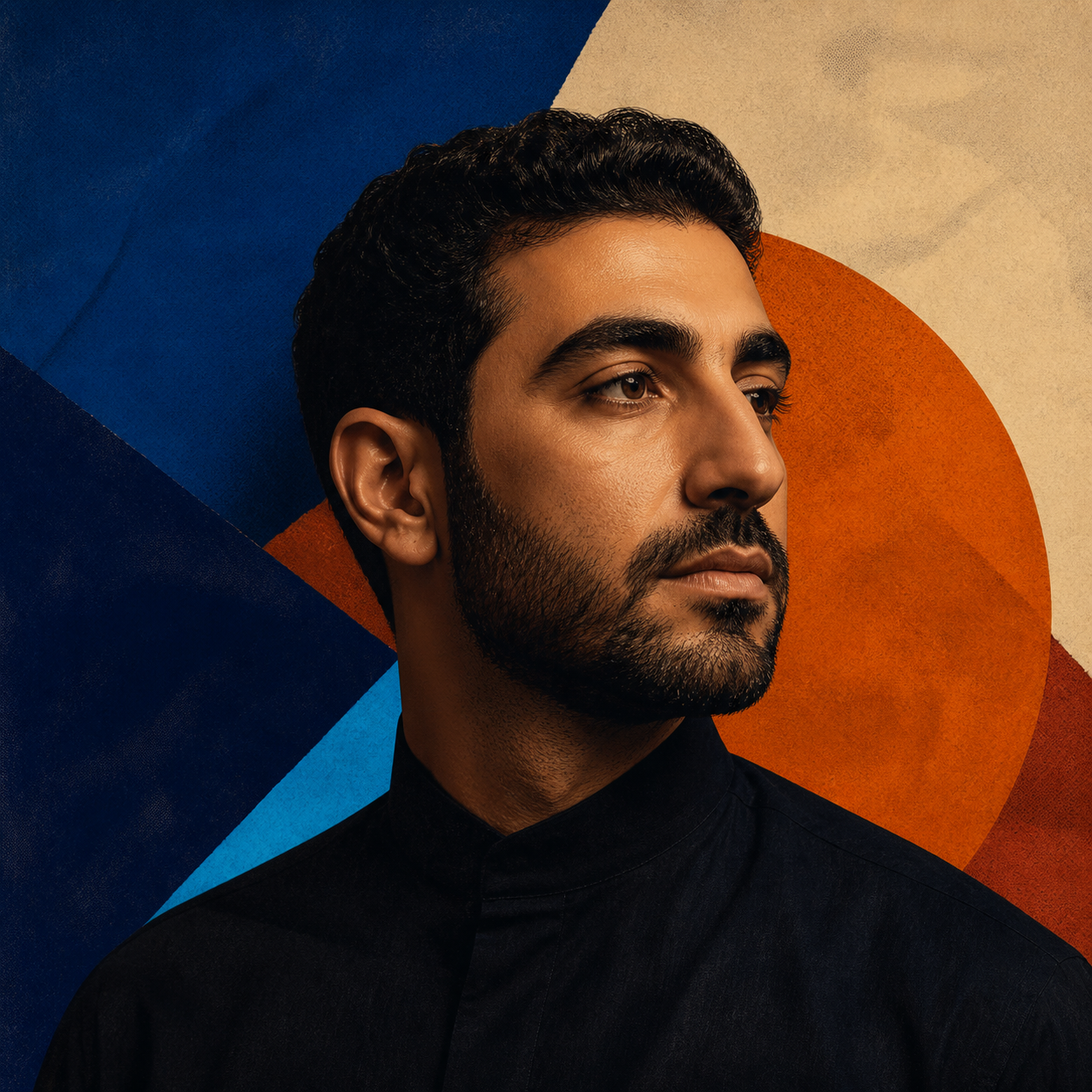
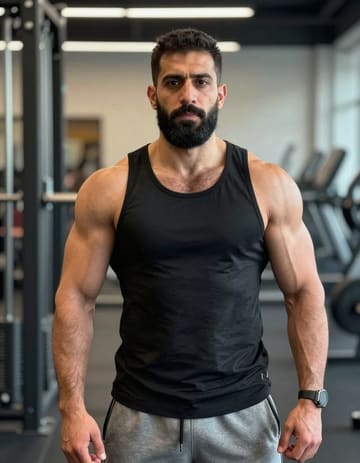
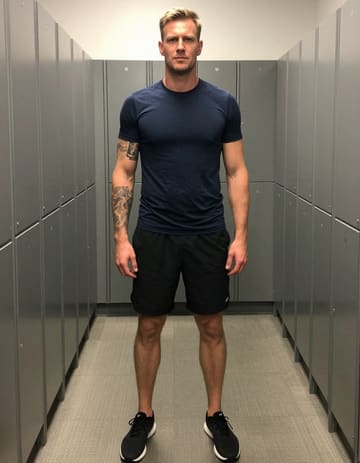
Two portraits in a studio performance first source portraitTwo portraits in a studio performance second source portrait
Two source portraits

Two portraits in a studio performance

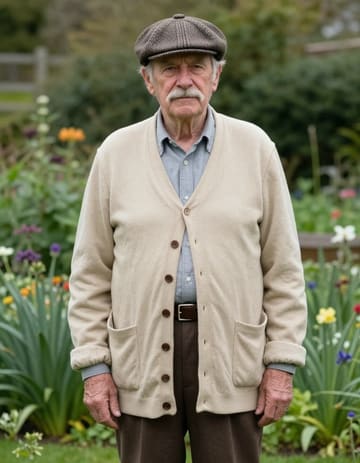
Family portraits in a duet first source portraitFamily portraits in a duet second source portrait
Two source portraits

Family portraits in a duet

Artwork used as a music reference
Portrait plus your track

Let the chorus set the pace

Play the source track
FROM TRACK TO SCREEN

Build a music video in three stages

Your cast
Your track
01

Choose the faces and the song

Upload portraits or a group photo, then add the song or recording that gives the scene its rhythm. Decide who appears and which section should guide the performance.

Shot direction
MovementBackdrop

Review the first scene

02

Set the visual language

Choose a reference for the motion, select a background, and add instructions for the gestures, props, or atmosphere that should appear around the performers.

MP4
03

Edit the cut around the beat

Review the preview, revise a scene when needed, then arrange the finished clips with your footage and music. Trim, mute, and export the final video when the sequence is ready.

The AI Music Video Generator works in a phone or desktop browser. Prepare a scene on your device and return to the saved project while the render is processing.
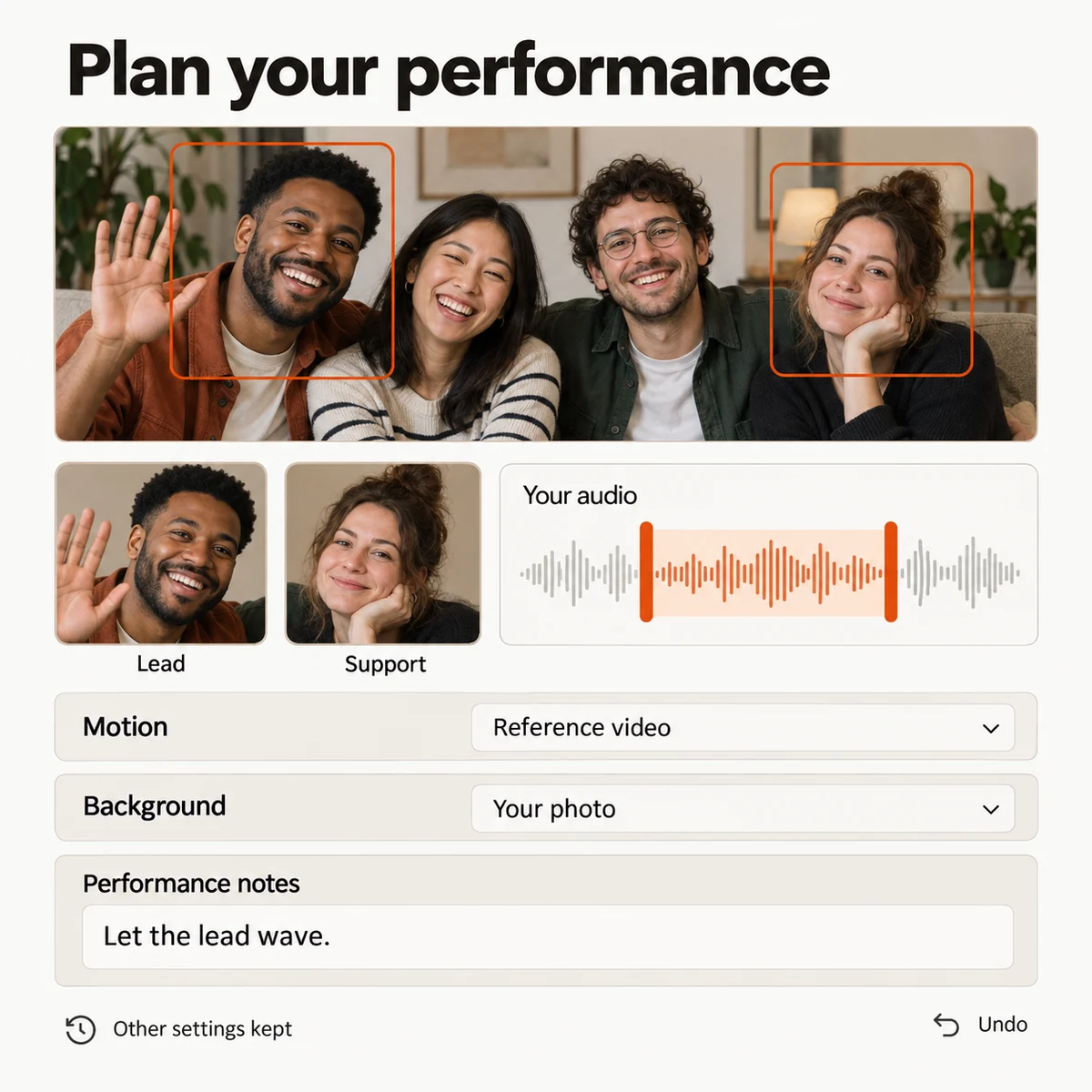
DIRECT THE WHOLE VISUAL

Make the picture answer the music

Shape the scene before you render

Cast the story around your track
Choose two individual portraits or select people from a group photo. Set their positions and roles so the visual performance has a clear focal point from the first beat.
Plan a scene that matches the mood
Use a reference video, song, or voice recording to establish the feeling of a shot. Add direction for movement, props, styling, and the way each performer should appear on camera.
Separate movement from the backdrop
Guide the action with one source and choose the setting from another. This lets a quiet portrait, a stage performance, or a more cinematic scene share the same workflow.
Keep the version that feels right
Save a setup before experimenting with a new role or instruction. Review the change, restore an earlier version, and continue shaping the strongest take.
Music video setup with performers, roles, a reference track, motion direction, and separate background controls.
Studio preview

Turn individual scenes into a finished release

Create visual variations for one song
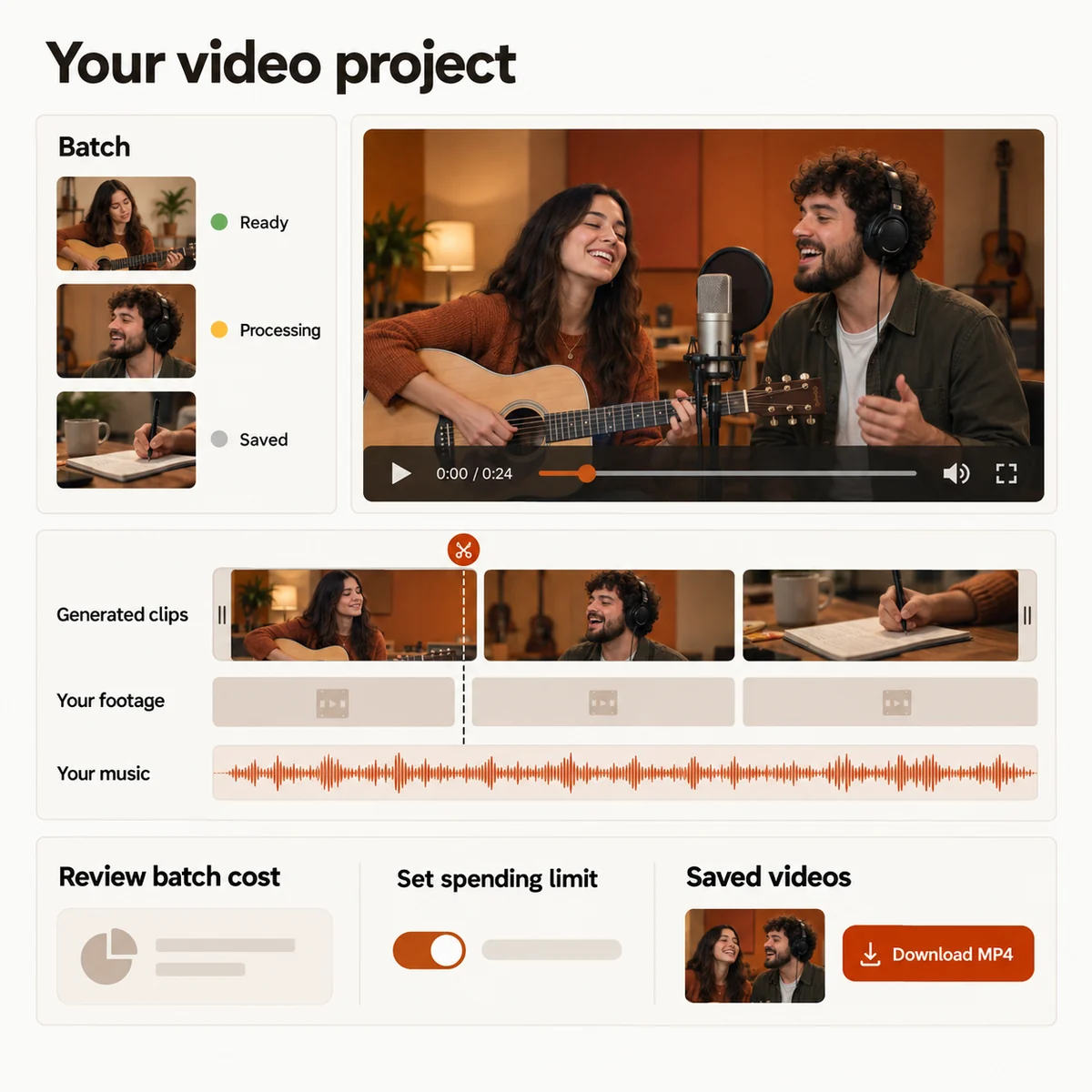
Prepare several scenes from a photo collection or a list of visual ideas. Carry the overall direction across the batch while tailoring the cast and action for each shot.
Build a complete cut on the timeline
Combine generated scenes with your own footage. Reorder the sequence, trim the quiet parts, add a music bed, choose transitions, and mute any clip before exporting.
Review the estimate before rendering
See how your selected duration, quality, and batch size affect the credit total. Set a spending limit before submitting the next set of scenes.
Return to the project as it develops
Follow each render from submission to result. Reopen saved settings, check completed previews, and retry a scene without rebuilding the whole music video concept.
Music video timeline with generated scenes, personal footage, music, budget controls, and MP4 export options.
Studio preview
FIND YOUR NEXT SHOT

Four ways to make a song visual

01

Give a new single its opening scene

Pair a portrait with the first section of your track and create a visual introduction for a song you are ready to share.

02

Turn a chorus into a performance

Choose the people who belong in the frame, select the chorus, and build a short performance around the part listeners remember.

03

Make a memory montage with music

Bring together family or travel photos, animate selected moments, and arrange them into a personal video with your own soundtrack.

04

Add an AI scene to an existing edit

Create a performance shot that belongs beside footage you already filmed, then place both on one timeline for a polished social cut.

ONE TRACK, TWO DIFFERENT JOBS

Choose how the song shapes the scene

For a vocal performance, choose Your own audio in the AI Music Video Generator and select a passage of your recording. That audio guides the generated performance. Adding music to a finished clip in the editor supplies a soundtrack; it does not regenerate mouth movements.

For a longer song, plan separate scenes for the intro, verse, and chorus, then assemble the clips yourself. Check the length available in the quality settings for each scene. The editor lets you choose the cuts; it does not promise automatic beat matching or a complete song-length video in one generation.

YOUR NEXT PERFORMANCE

AI Music Video Generator plans

Choose a credit plan for your next visual. The studio shows the estimated cost for your selected duration and quality before you submit.

  • MP4 downloads
  • No preview watermark
  • See credit costs before generating

Loading plans…

One-time credit packs

Pay once. Create at your own pace. Credits never expire.

Loading credit packs…

Video counts and per-video prices are based on Standard · 720p · 12s (10 credits).

Secure checkout by Stripe · Packs never expire · Subscriptions renew until canceled

What a video costs

Credits per 12-second video. Length scales the price, rounded up to a whole credit. All formats cost the same.

Video credits by model and resolution, per 12 seconds
Model480p720p1080p
StandardSeedance 2.0 Mini5 credits10 credits—
FastSeedance 2.0 Fast8 credits17 credits—
ProSeedance 2.010 credits20 credits50 credits
UltraSeedance 2.517 credits37 credits93 credits
YOUR NEXT RELEASE

Give your next track a visual world

Bring the song, choose the cast, and shape the first scene before you decide how far to take the finished music video.
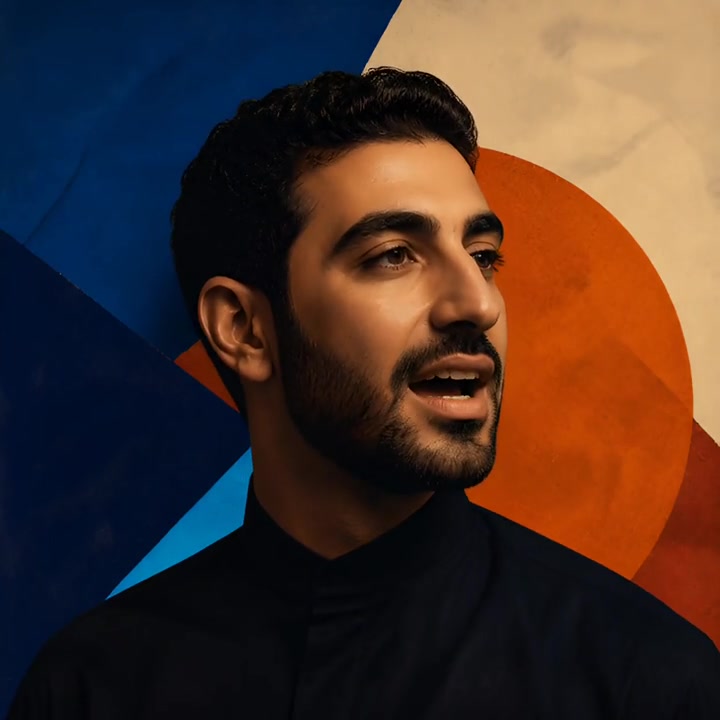
AI Music Video Generator: Turn Photos and Songs into Video