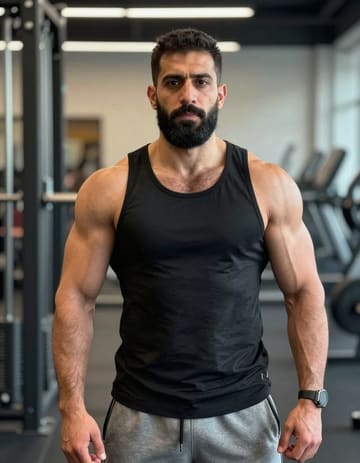
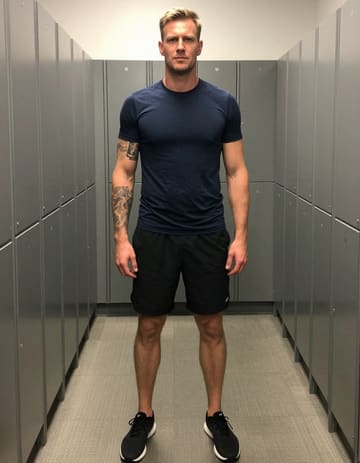
Turn two portraits or a group photo into an original Migos AI song and video starring you and a friend. Choose who leads and bring your Hotel Lobby-style rap duet to life. Review the result before unlocking the full video.
Loading plans…
Video counts are based on Standard · 720p · 12s (10 credits).
The Migos AI trend puts familiar faces into a rap performance inspired by Quavo and Takeoff’s “Hotel Lobby” on A COLORS SHOW. The orange studio and two-person setup are the starting point; your photos decide who appears in your version.
Create your own Migos AI song and video with you and a friend. Start with the Hotel Lobby setup or your own video or audio, then customize the performance and edit the finished clip. Open the Hotel Lobby AI studio
Explore reference duets made from portraits of friends, relatives, and couples. Compare the source photos with the performances for ideas for your own Migos AI video.
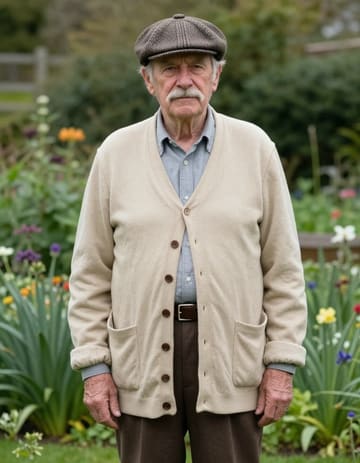
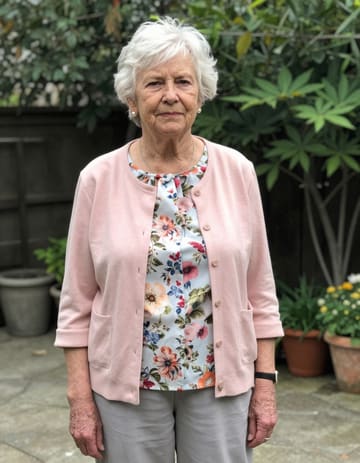
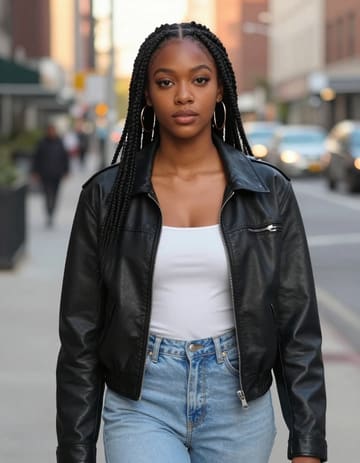
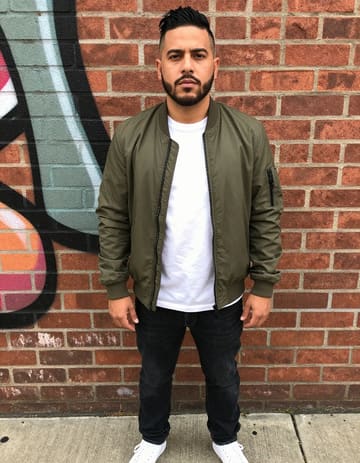
Upload two portraits or select two people from a group photo. Choose their positions and decide who leads the rap and who backs them up.
Start with the Hotel Lobby setup or use your own video or audio to guide the performance. Adjust the settings and review the credit estimate before generating.
Preview your Migos AI song and video in about 3 minutes. Unlock the full video, trim or combine clips, and download the finished MP4 to share.
Make your Migos AI video in a mobile or desktop browser. The studio handles generation and final rendering in the cloud.
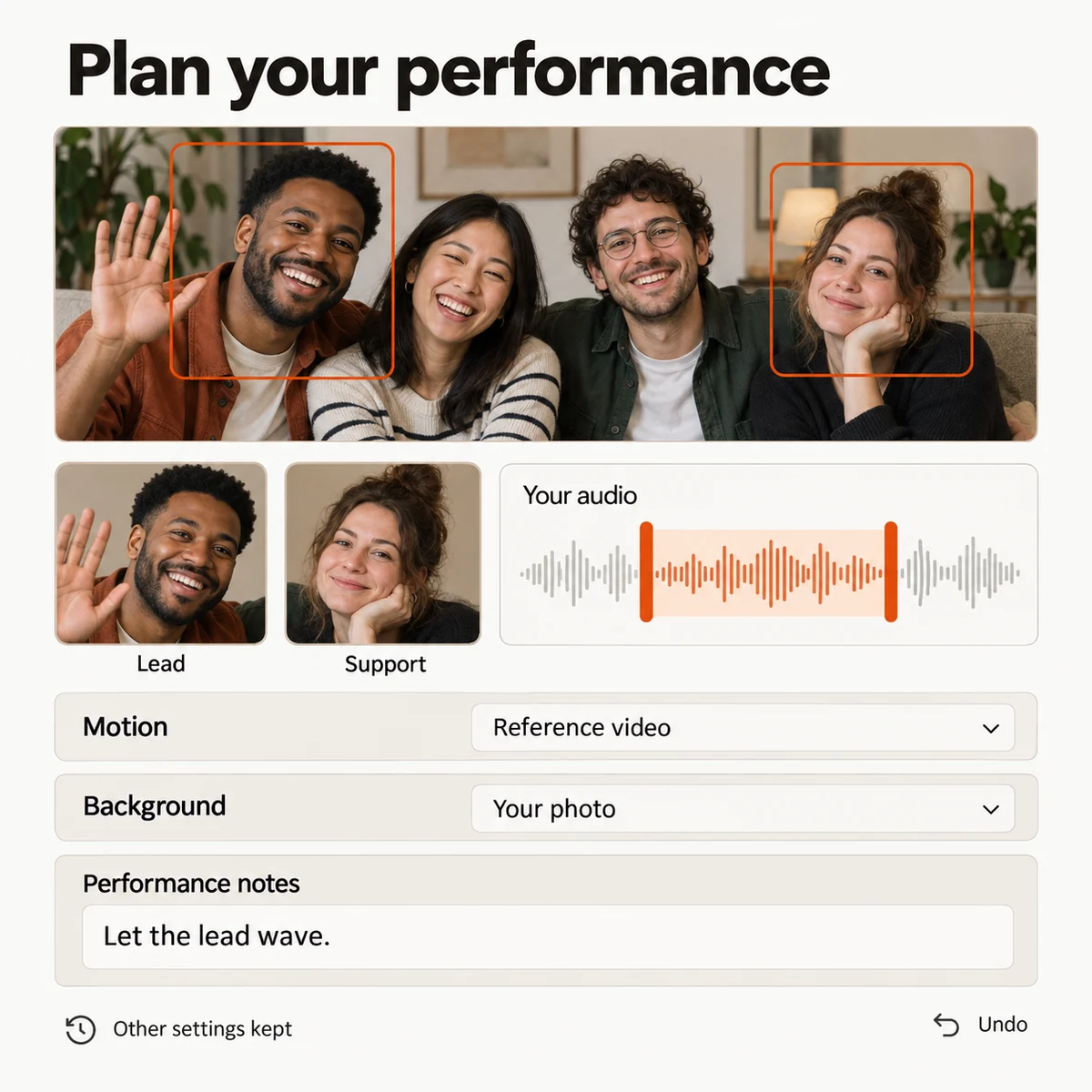
Choose two people from separate portraits or a group photo to perform your Migos AI song. Set their positions and assign the lead and supporting parts for your rap duet.
Create an original song and rap video with the Hotel Lobby setup, or guide the performance with your own video, song, or voice recording. Preview uploaded references and choose the section you want to use.
Use a reference for the choreography while choosing the backdrop separately from a photo or video. Add instructions for each performer’s gestures, props, and appearance to shape your Migos AI video.
Swap the lead, adjust a gesture, or refine your instructions using the saved setup. Review suggested changes before applying them, keep the settings you already like, and undo an edit when you need to.
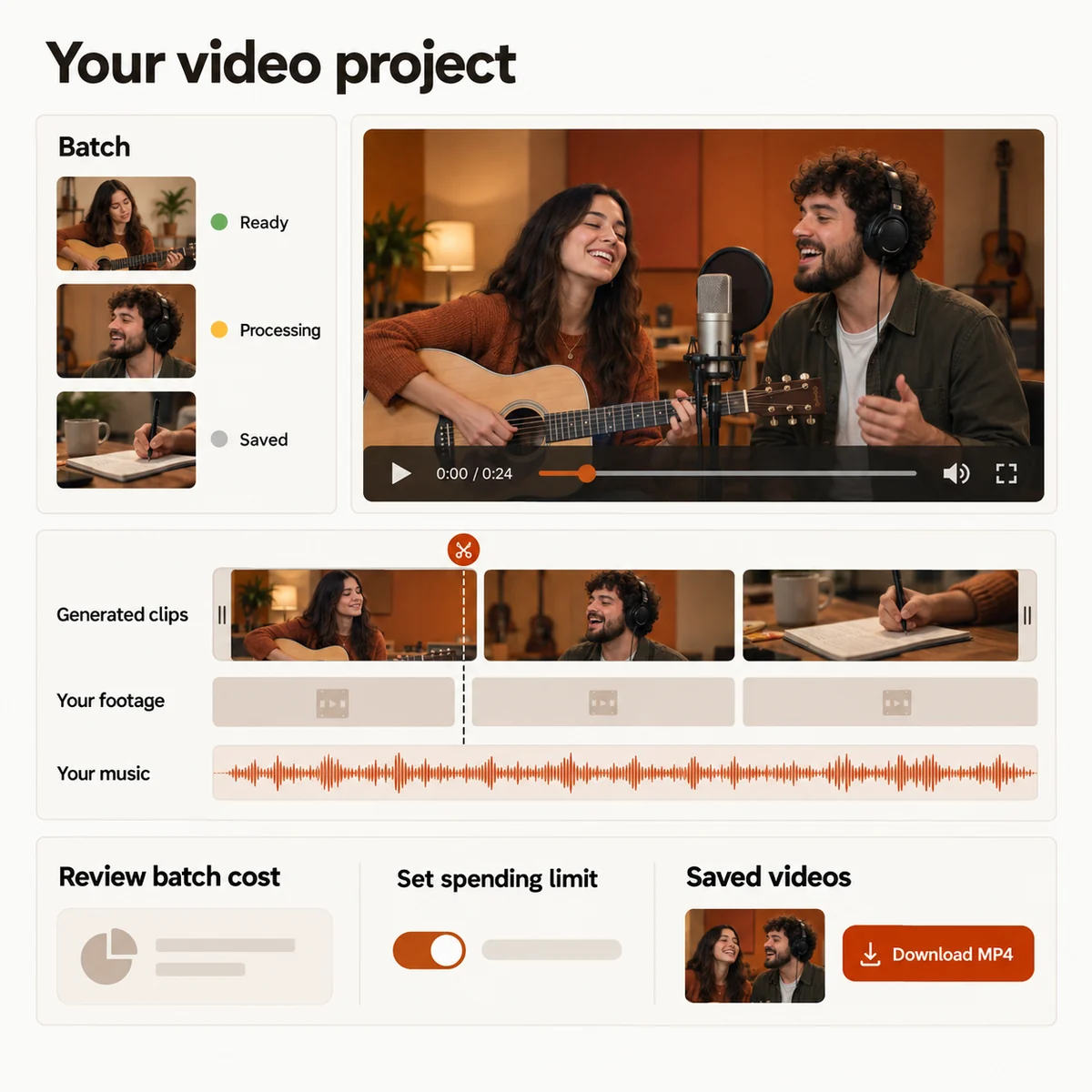
Create a batch from a photo collection or a set of performance ideas. Carry settings across the batch, tailor individual items, and follow each Migos AI generation’s progress separately.
Bring generated performances and your own footage into one timeline. Start with an automatic first cut, then reorder and trim scenes, add music, and choose transitions and color presets.
You can also shorten or mute a finished clip without paying for another generation.
Check the credits for your chosen settings, see how many generations your balance covers, and review the total for a batch. Set a spending limit before submitting your Migos AI videos.
Follow a task through the queue and open its result when it is ready. Reuse a failed task’s settings for another attempt, or return to play and download available videos during their storage period.
A rap you recorded, a favorite line from your own song, or a spoken message can become the basis of a performance. Upload the audio, listen back, and choose the passage you want your photos to sing or speak.
When finishing the video, keep the reference sound, add music to your edit, or export silently. Audio supplied for generation guides the performance; music added in the editor accompanies the finished clip. Use recordings you have permission to include.
Use these reference examples as inspiration for a duet, a personal message, or a longer edit built around your own photos and footage.
Make your own version of the Migos AI trend with someone you know. Choose your two portraits, assign the lead and supporting parts, and create a performance to send to friends or share on social media.
Bring a rap, a song, or a spoken message you recorded yourself. Select a section of the audio and animate your photo into a performance that follows it.
Gather photos from different years, animate them in the studio, and assemble the clips with music. Include a Migos AI duet as one moment in a birthday video made for your friend or family member.
Mix Migos AI scenes with footage you have already filmed and your own music. Arrange the sequence, shorten individual shots, and export the assembled video as an MP4.
Review your preview, then unlock a standard 720p, 12-second Migos AI video for 10 credits. Use a one-time credit pack or choose a monthly or yearly plan.
Loading plans…
Pay once. Create at your own pace. Credits never expire.
Loading credit packs…
Video counts and per-video prices are based on Standard · 720p · 12s (10 credits).
Secure checkout by Stripe · Packs never expire · Subscriptions renew until canceled
Credits per 12-second video. Length scales the price, rounded up to a whole credit. All formats cost the same.
| Model | 480p | 720p | 1080p |
|---|---|---|---|
| StandardSeedance 2.0 Mini | 5 credits | 10 credits | — |
| FastSeedance 2.0 Fast | 8 credits | 17 credits | — |
| ProSeedance 2.0 | 10 credits | 20 credits | 50 credits |
| UltraSeedance 2.5 | 17 credits | 37 credits | 93 credits |
Put you and a friend in a Hotel Lobby-style rap duet with an original AI song. Start with two photos or a group shot, choose who leads, and preview your performance in about 3 minutes.
Hotel Lobby AI is an independent tool, unaffiliated with Migos, Quavo, Takeoff, Offset, or COLORS.