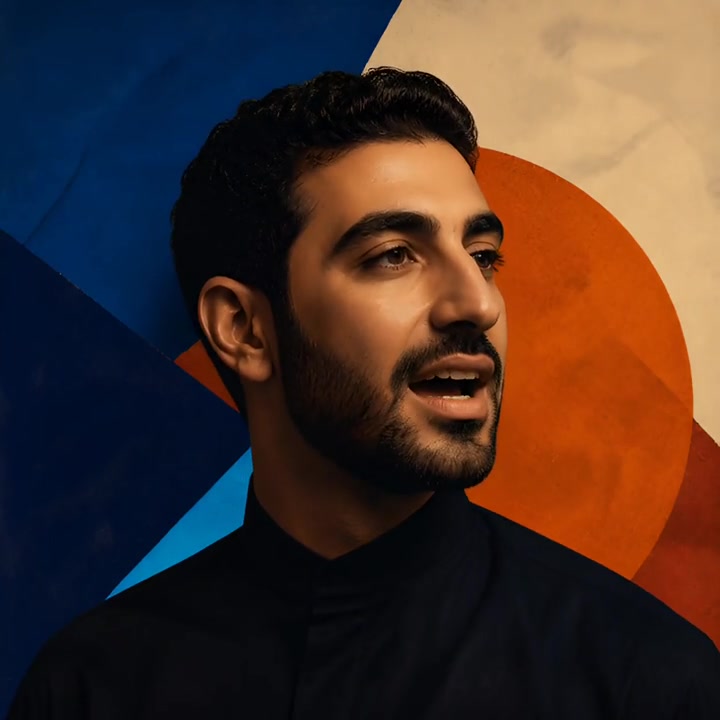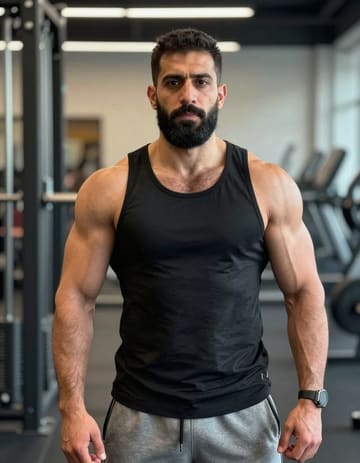
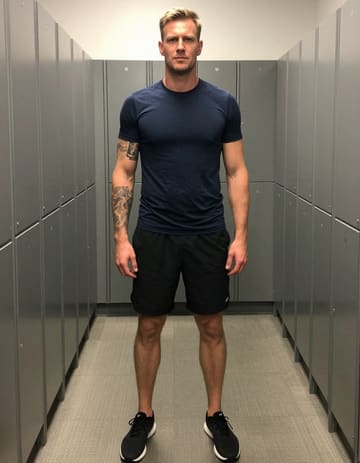
Pair portraits with your own song or a reference clip to create an AI music video. Choose the cast, direct the scene, and shape the final edit around the track.
Loading plans…
Video counts are based on Standard · 720p · 12s (10 credits).
The AI Music Video Generator turns portraits, recordings, and visual direction into short performance scenes. Start with the feeling of the song, then choose the faces, setting, and movement that carry it on screen.
These reference performances show different starting points: two portraits in a duet and artwork animated with supplied audio. Use them to plan a scene; they are not demonstrations of an automatically edited full-length song.
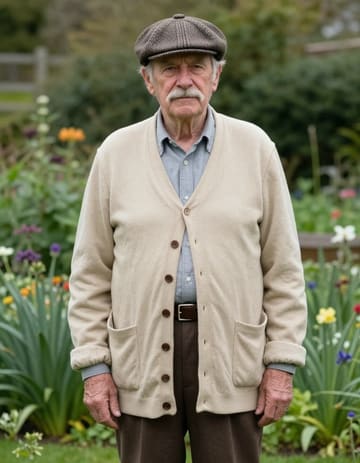
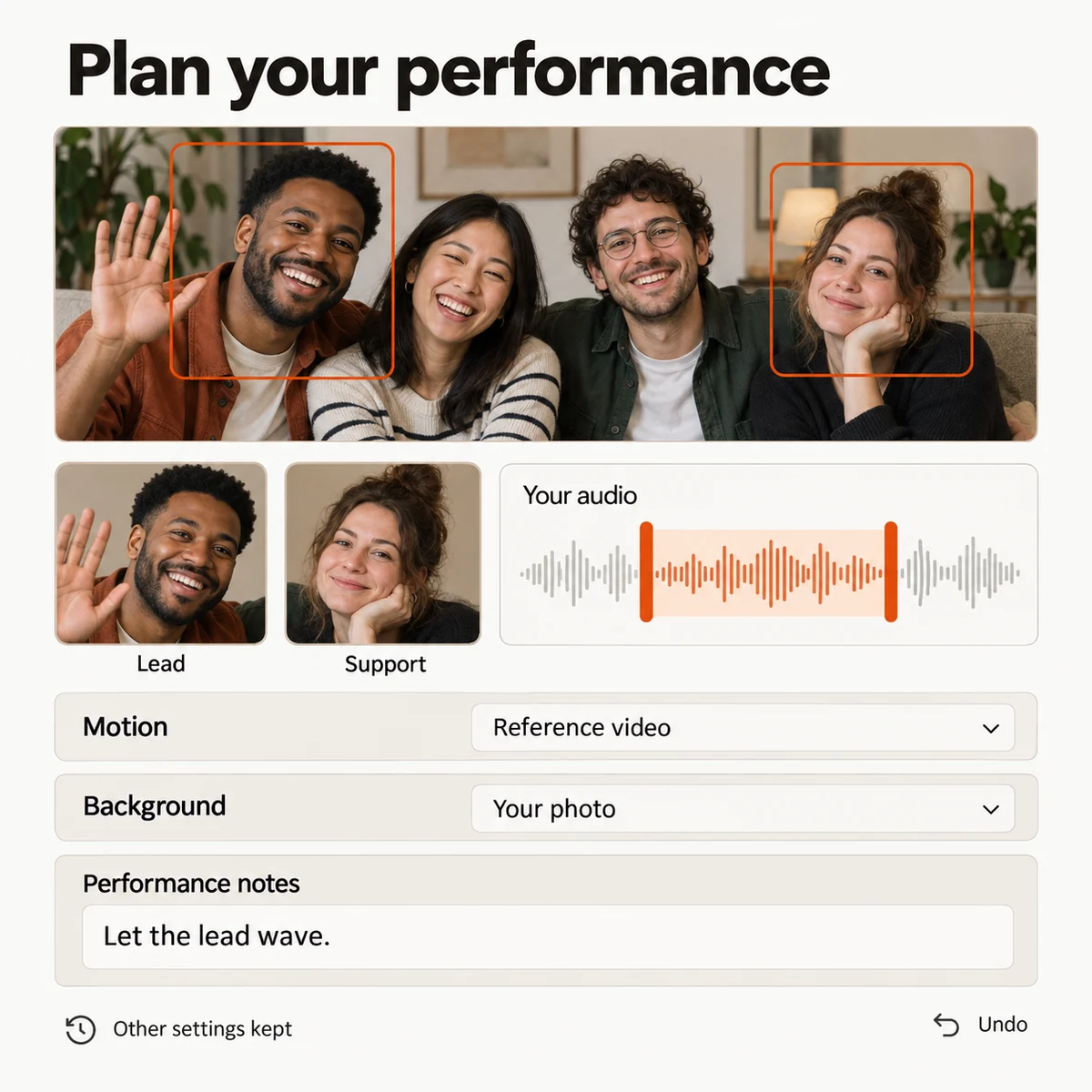
Upload portraits or a group photo, then add the song or recording that gives the scene its rhythm. Decide who appears and which section should guide the performance.
Review the first scene
Choose a reference for the motion, select a background, and add instructions for the gestures, props, or atmosphere that should appear around the performers.
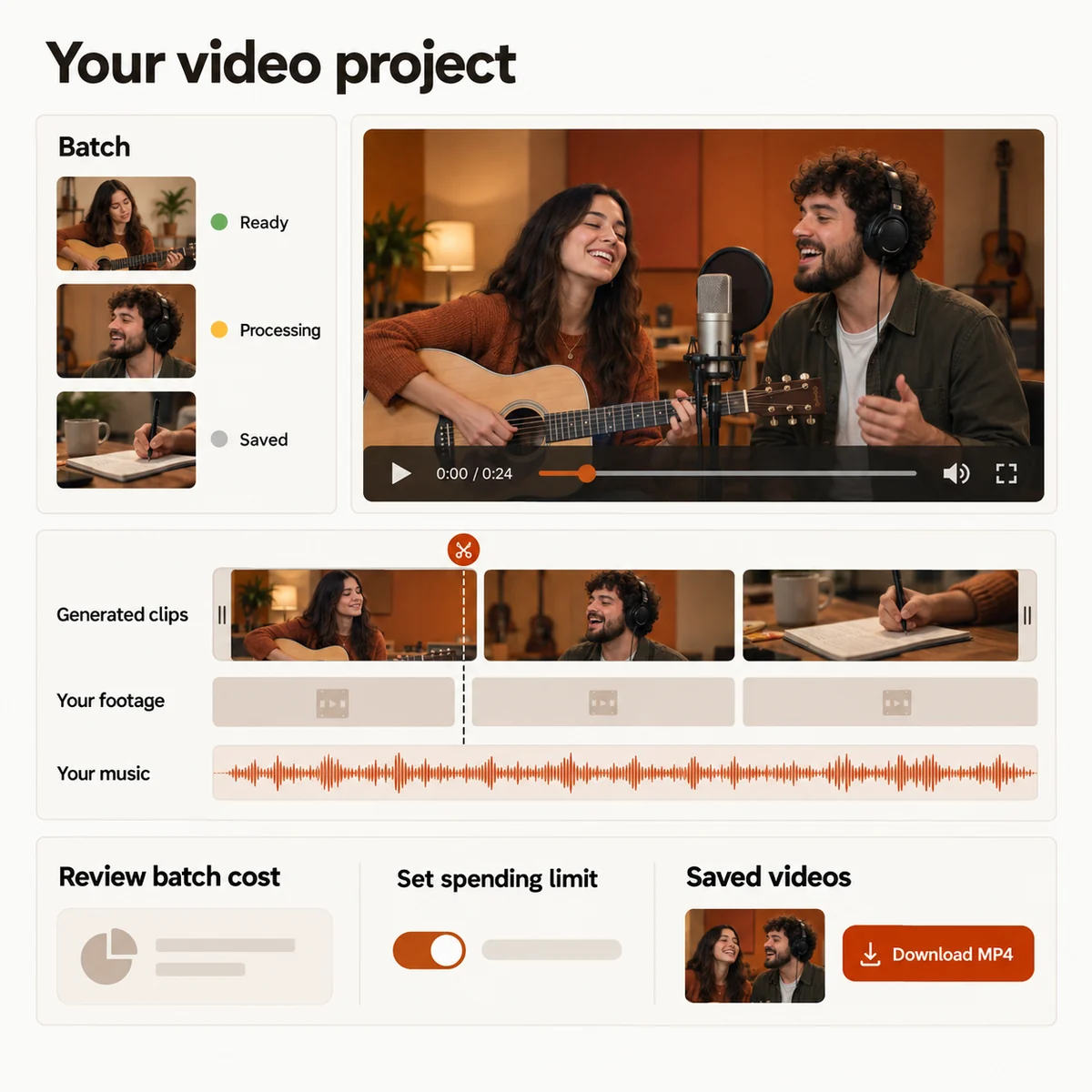
Review the preview, revise a scene when needed, then arrange the finished clips with your footage and music. Trim, mute, and export the final video when the sequence is ready.
The AI Music Video Generator works in a phone or desktop browser. Prepare a scene on your device and return to the saved project while the render is processing.
Pair a portrait with the first section of your track and create a visual introduction for a song you are ready to share.
Choose the people who belong in the frame, select the chorus, and build a short performance around the part listeners remember.
Bring together family or travel photos, animate selected moments, and arrange them into a personal video with your own soundtrack.
Create a performance shot that belongs beside footage you already filmed, then place both on one timeline for a polished social cut.
For a vocal performance, choose Your own audio in the AI Music Video Generator and select a passage of your recording. That audio guides the generated performance. Adding music to a finished clip in the editor supplies a soundtrack; it does not regenerate mouth movements.
For a longer song, plan separate scenes for the intro, verse, and chorus, then assemble the clips yourself. Check the length available in the quality settings for each scene. The editor lets you choose the cuts; it does not promise automatic beat matching or a complete song-length video in one generation.
Choose a credit plan for your next visual. The studio shows the estimated cost for your selected duration and quality before you submit.
Loading plans…
Pay once. Create at your own pace. Credits never expire.
Loading credit packs…
Video counts and per-video prices are based on Standard · 720p · 12s (10 credits).
Secure checkout by Stripe · Packs never expire · Subscriptions renew until canceled
Credits per 12-second video. Length scales the price, rounded up to a whole credit. All formats cost the same.
| Model | 480p | 720p | 1080p |
|---|---|---|---|
| StandardSeedance 2.0 Mini | 5 credits | 10 credits | — |
| FastSeedance 2.0 Fast | 8 credits | 17 credits | — |
| ProSeedance 2.0 | 10 credits | 20 credits | 50 credits |
| UltraSeedance 2.5 | 17 credits | 37 credits | 93 credits |
Bring the song, choose the cast, and shape the first scene before you decide how far to take the finished music video.