To make a Hotel Lobby AI video with yourself and a friend, start with two portraits or a photo you are both in. In Migos AI, select the performers, choose who leads, keep the Hotel Lobby template, and review the credit cost before generating. Download the completed clip from My Videos.
Written by the Hotel Lobby AI team. Product instructions and public pricing checked September 30, 2026.
What is the Hotel Lobby AI video trend?
The orange studio comes from Quavo and Takeoff’s “HOTEL LOBBY” performance on A COLORS SHOW. AI versions put different people into a similar duet. You may also see the format described as the Migos AI or Unc & Phew trend.
When is Hotel Lobby AI a useful choice?
Hotel Lobby AI is useful when you want to select two people from an existing photo and arrange their duet in the same tool. You can prepare the cast and roles in your phone or desktop browser:
| What you want to do | How Hotel Lobby AI helps |
|---|---|
| Pick two people from a larger group | Move and resize two selection frames inside the tool, without first exporting separate portraits. |
| Arrange positions and performance roles | Choose who stands on each side and who leads. Swap sides while keeping each person's role. |
Imagine a holiday photo with six friends. You want a video featuring yourself on the left taking the lead, with one friend supporting on the right. The steps below use that example to show the choices you would make.
1. Choose two portraits or select people from a group photo
Open the Migos AI creator. Upload one portrait for each performer, or choose Use a group photo instead.
With a group photo:
- Upload the image.
- Move and resize each frame over one of your chosen performers.
- Check both selections, then select Use these two people.
For the holiday photo, place one frame around yourself and the other around your friend. If either face is small, blurry, or partly hidden, use a clearer individual portrait instead; a tighter crop cannot restore missing detail.
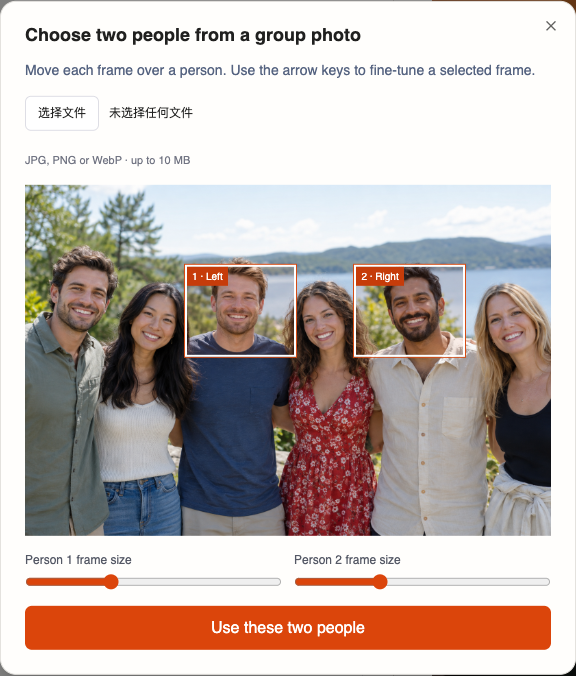
Group selection in the local app. The six fictional adults were created with AI as a demonstration input.
Photo uploads accept JPG, PNG, and WebP files up to 10 MB each. Use photos you have permission to animate. The two portraits can be taken separately.
2. Set positions and choose who leads
Put your selection on the left and assign Lead. Put your friend on the right and assign Support. If you prefer to stand on the right, use Swap positions; you remain the lead. Position and role are separate settings.
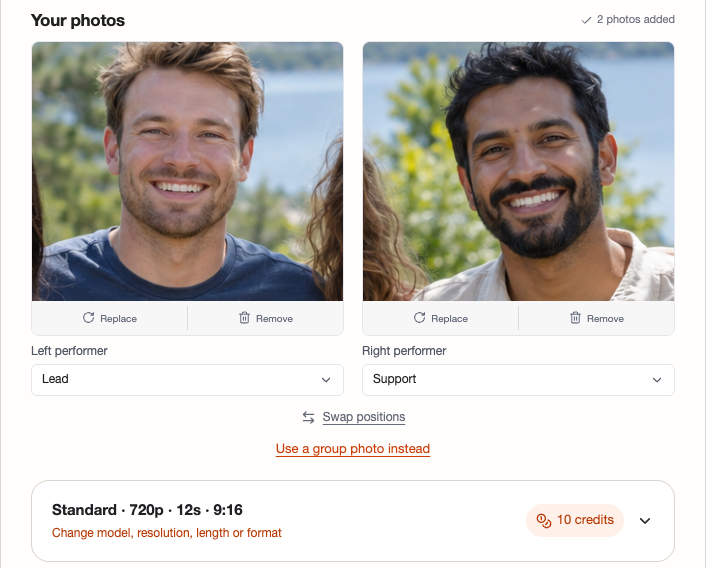
The selected portraits, roles, and 10-credit form estimate. No generation was submitted; the final quote is reviewed later.
Under Customize performance, add a short note if needed:
The lead faces the camera and gestures with one hand. The supporting performer nods along beside them.
Roles and notes guide generation without guaranteeing who mouths each lyric. Start with one clear direction, then check the result. A new generation may also change details beyond the setting you edited.
3. Choose the template and its audio
For this duet, keep Hotel Lobby mode. The reference is built in, so you do not need to upload a separate template video or song.
Under Customize performance → Audio, the default Reference audio setting uses the built-in template's audio for the selected section. Choose Silent for an export without sound.
For a different idea, two separate modes accept your own material:
- Your own audio: upload a song or voice recording and select a passage to guide the performance.
- Your own video: upload a motion reference and select the movement you want to use.
Choose according to what matters most: your recording or a particular movement. Using your own audio does not automatically preserve the Hotel Lobby template’s choreography.
4. Check the settings and cost
A Standard, 720p, 12-second generation costs 10 credits. For the holiday-photo duet, those settings provide a concrete starting budget. Different models, resolutions, and lengths change the quote.
The pricing page listed these one-time options on September 30, 2026:
| Credit pack | Upfront price | Generations at Standard, 720p, 12 seconds |
|---|---|---|
| Single — 10 credits | $9.90 | 1 |
| Duo Pack — 50 credits | $29 | 5 |
The Single pack covers one attempt without a subscription. The Duo Pack works out to $5.80 per generation at those settings, with a $29 upfront purchase.
Generation currently requires paid credits. A completed video is charged even if you want a different result, so budget for attempts. Creating another version uses more credits. Once a failure is confirmed, reserved credits that have not expired return to your balance.
5. Generate, review, and download
Select MAKE OUR RAP VIDEO and sign in if prompted. If your balance is too low, choose a credit pack or plan. Buying credits funds your balance; you still review the generation quote before submitting the task.
Check the quoted model, resolution, duration, format, and credits. Select Generate with the displayed cost to proceed. Follow the task status in the studio, or return to My Videos later.
Watch the whole result with sound before sharing it:
- Are you and your friend recognizable during turns and gestures?
- Do your positions and performance follow the arrangement you chose?
- Do the mouth movements fit the audio closely enough for your purpose?
- Does the selected passage begin and end where you intended?
Download the completed paid video as an MP4 from My Videos before its displayed expiry date. Open the downloaded file to check playback.
Choose your performers in Migos AI, or read our tool comparison if you are still deciding which workflow fits your photos and audio.