Looking for a Higgsfield Hotel Lobby video? The usual Higgsfield workflow starts with a template or motion reference and uses a general-purpose video tool to recast a performer. That is useful when the original performance and movement are the part you want to preserve.
If your brief is more specific—choose two people from a group photo, decide who leads, and use a built-in Hotel Lobby template or your own audio or motion reference—a photo-first workflow can be easier to evaluate. Migos AI is built around those decisions and shows the generation credit quote before you submit.
Written by the Hotel Lobby AI team. Public creator tutorials, live product capabilities, and pricing were checked October 2, 2026. “Easier” here describes the number of setup decisions in a particular workflow, not a claim about output quality.
The practical difference
Hotel Lobby AI is a useful starting point when your main decisions are:
- Which two people: select them from a group photo or add two separate portraits.
- Who performs which role: set left/right positions and assign one Lead and one Support role.
- What should drive the performance: use the built-in Hotel Lobby reference, your own audio, or your own motion video.
The product shows the model, output settings, and credit quote before a paid generation. These controls make the workflow easier to compare; they do not guarantee exact lyrics, gestures, identity preservation, or output quality.
What does “Higgsfield Hotel Lobby” mean?
The phrase usually refers to recreating the orange two-person performance associated with the Hotel Lobby trend. Higgsfield is a broad AI video platform, so the exact labels and interface can change as models and community tools change. Public creator tutorials commonly describe two approaches: recreating a community template or using motion transfer with a reference clip.
How creators approach the Hotel Lobby trend with Higgsfield
Recreate a community template
The first approach is to find a Hotel Lobby template in the platform’s community library, replace the reference character images with your own, and keep the template’s prompt or settings. Some creator tutorials describe this area as Genjutsu, but the name and available controls can change; check the current Higgsfield interface before following a tutorial. This can be a practical route when the exact community performance is the result you want to study.
The setup depends on what is currently available in the library. A template may disappear, use different input slots, or expose different controls after an interface update, so treat creator tutorials as a description of a workflow rather than permanent product instructions.
Use motion transfer from a reference video
The second approach is to choose a motion-transfer tool, provide the Hotel Lobby performance as the movement reference, and add a character image. The result is driven by the source performance’s framing, timing, and gestures.
This approach is most relevant when the movement is more important than choosing two people from a shared photo. It also means you need to prepare a suitable reference clip and check the rights attached to any audio or footage you upload.
What does that workflow require?
Higgsfield can be a good fit when you want general model and motion controls. For a simple two-person personal video, the preparation can be more involved:
| Decision | What you may need to prepare |
|---|---|
| Reference | Find a community template or prepare a motion clip |
| People | Add character images in the slots supported by the selected tool |
| Composition | Check which person appears on each side of the frame |
| Performance | Keep or edit a prompt that describes the result |
| Audio | Confirm what soundtrack the reference uses and whether you can share it |
| Cost | Review the current model, duration, and credit requirements before submitting |
For one person replacing a character in an existing performance, that tradeoff may be worthwhile. For two friends in a group photo, you may first want a tool that makes the people and roles explicit.
A group-photo workflow for Hotel Lobby videos
Migos AI starts with the people in your idea rather than a separate template hunt. You can upload two portraits, or upload one group photo and select the two performers inside the tool.
1. Select the two people
With a group photo, move and resize the selection frames over the two people you want to feature. This keeps the selection step in the same project as the video settings. If a face is tiny, blurry, or partly hidden, use a clearer portrait; a crop cannot restore detail that is missing from the source.
Photos can be JPG, PNG, or WebP files up to 10 MB each. Only upload photos of people who have agreed to appear.
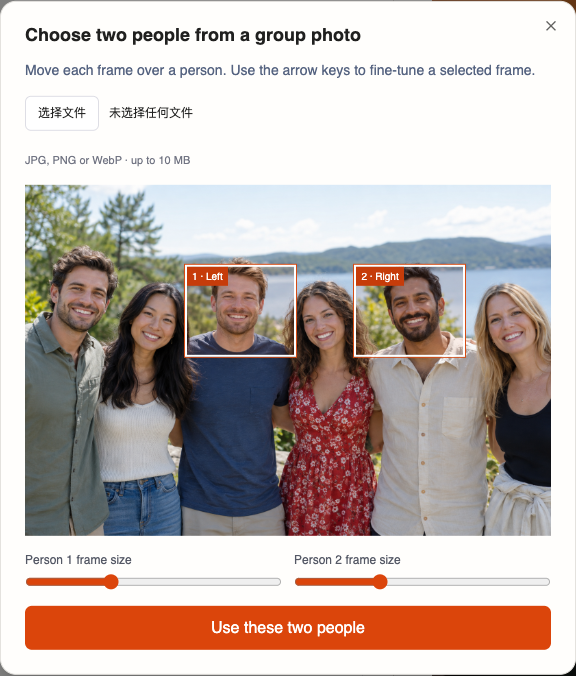
Product interface example using fictional adults created for documentation. No generation was submitted for this screenshot.
2. Set positions and roles separately
Place one performer on the left and the other on the right. Then choose exactly one Lead and one Support role. If you swap sides, the role assignment can remain attached to the person you selected.
For example, select two parents from a family photo, place Dad on the left as Lead, and place Mum on the right as Support. These settings guide the generation request; they do not guarantee exact lyric handoffs, gestures, or output quality.
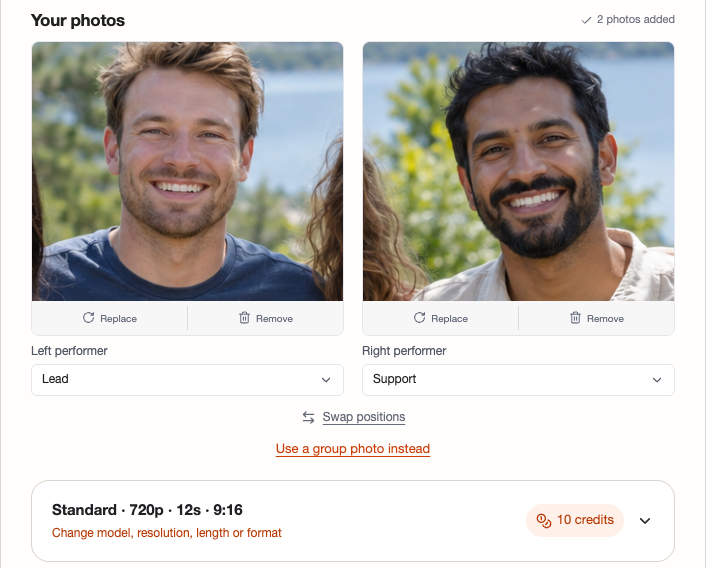
The screenshot shows role settings and a quote before generation. It is not evidence of a completed video.
3. Choose the material that should drive the performance
Hotel Lobby AI provides separate creation modes:
- Hotel Lobby: use the built-in orange-booth reference and select the section to perform.
- Your own audio: upload a song or voice recording and select the passage that should drive the performance.
- Your own video: upload a motion reference and select the section to follow.
- Photo animation: use a single performer where that mode is appropriate.
Audio and video references are separate choices. Uploading a song does not automatically preserve the Hotel Lobby template’s choreography, and a motion reference does not automatically supply a new soundtrack.
4. Review the quote before generating
The product shows the selected model, duration, resolution, format, and credit cost before submission. The current standard reference point is 720p, 12 seconds, vertical 9:16, and 10 credits. New generations use paid credits; the live product does not currently advertise a free preview for new generations.
See current pricing for subscriptions and one-time credit packs. A standard setting is only a reference point: changing the model, duration, or resolution changes the quote.
5. Watch and download the result
After generation, follow the task in the studio or open My Videos. Watch the complete clip with sound and check both faces, positions, gestures, and the selected passage before sharing. Completed paid videos are available as MP4 downloads until the expiry date shown with the project.
Which workflow fits your project?
| You want to… | A suitable starting point |
|---|---|
| Recast a character inside a particular motion performance | Higgsfield’s current motion or template workflow |
| Choose two people from one group photo | Hotel Lobby AI’s group-photo selector |
| Set left/right positions and Lead/Support roles before generating | Hotel Lobby AI |
| Bring your own song or voice recording | A custom-audio workflow in Hotel Lobby AI |
| Carry movement from your own video | A custom-video workflow in Hotel Lobby AI or a general motion-transfer tool |
| See the generation cost before submitting | A tool with a project quote, such as Hotel Lobby AI |
There is no single best workflow for every Hotel Lobby video. Start with the material you need to preserve: an existing performance, the identity of two people, a recording, or a motion reference.
Frequently asked questions
Do I need a Higgsfield template to make a Hotel Lobby video?
No. A general-purpose workflow may use a community template or a motion reference, but Hotel Lobby AI includes a Hotel Lobby mode with its own reference. You can also use separate custom-audio or custom-video modes when your own material matters more.
Can I choose two people from a group photo?
Yes. In Hotel Lobby AI, upload the group photo, move the two selection frames over the people you want, and confirm the pair before assigning positions and roles.
Can I use my own song?
Yes. Choose the custom-audio mode, upload a recording you have permission to use, and select the section that should drive the performance. Audio mode does not automatically preserve the built-in template’s movement.
Can I know the cost before I generate?
Yes. Review the quote after choosing the model, duration, resolution, aspect ratio, and reference section. New generations require paid credits, and another version uses another generation quote.
Does choosing Lead guarantee that person will perform every line?
No. Lead and Support are generation instructions for arranging the request. Review the completed video to see how the model interpreted the roles, gestures, and timing.
Start with the people in your idea
Use Higgsfield when you want its general motion and model controls. Use Migos AI when the starting point is a pair of people—especially two people selected from a group photo—and you want their positions, roles, reference material, and generation cost organized in one workflow.
For the full setup, read how to make a Hotel Lobby video from two photos or a group photo. For a wider comparison, see the Hotel Lobby AI generator guide.