If you only want to place one face into an existing Hotel Lobby clip, a CapCut template may be enough. If you want to choose two people from a group photo, assign their positions and Lead/Support roles, use your own audio or motion reference, and review the credit cost before generating, Migos AI is a better fit for that workflow.
Hotel Lobby AI workflow, capability, and pricing information checked October 2, 2026. Generation quality and speed were not benchmarked.
Where can you find a Hotel Lobby CapCut template?
CapCut templates are created and shared through CapCut's template system. On the web, CapCut's documented flow is to open Templates, search or browse, choose a template, and select Use Template. On mobile, a template can also open from a CapCut link shared in a TikTok video. The exact template library and available features can vary by platform, region, app version, and creator availability. See CapCut's template instructions before relying on a specific link.
Search for Hotel Lobby, Hotel Lobby trend, or related terms, then preview the result before choosing it. A template link that no longer opens may have been removed or may not be available in your current app or region.
How do you use the template?
The usual CapCut workflow is short:
- Open the template from CapCut or a shared template link.
- Select the photo or video slots requested by the template.
- Preview the replacement media and adjust the crop if the editor allows it.
- Export the finished clip and check the soundtrack before sharing it.
This is useful when the template's existing performance is exactly what you want. You are adapting a prepared edit, rather than directing a new two-person performance from your own creative brief.
What can a CapCut template do, and what can it not do?
A template is a fast way to reuse a prepared sequence. It also creates limits that matter for a personal Hotel Lobby video:
- The performance is prepared in advance. Your media replaces the template's slots, but the original choreography and edit remain the starting point.
- Two-person control depends on the template. A template may support one face, two faces, or a fixed arrangement. You need to inspect the template before preparing your photos.
- The template can disappear. Community links and regional availability can change while a trend is active.
- The soundtrack needs a rights check. Confirm that you have permission to share the music in the places where you plan to post it.
Choose CapCut when a ready-made edit matters more than selecting each performer and directing the duet.
For a broader tool comparison, see Best Hotel Lobby AI Video Generators. For a full start-to-finish walkthrough, read How to Make a Hotel Lobby AI Video from Your Photos.
When is Hotel Lobby AI a better fit?
Hotel Lobby AI is designed for the decisions that happen before generation. You can prepare the pair and the performance in one browser workflow:
| Your goal | Hotel Lobby AI workflow |
|---|---|
| Choose two people from a larger group photo | Move two selection frames over the people you want, then confirm both crops. |
| Decide who leads | Assign one performer as Lead and the other as Support. |
| Change left and right without rebuilding the roles | Use Swap positions; the selected roles stay with the people. |
| Use a song or voice recording you provide | Select Your own audio and choose the section that should guide the performance. |
| Use movement from a reference clip | Select Your own video and choose the motion section. |
| Know the cost before submitting | Review the generation quote, settings, balance, and credit cost before selecting Generate. |
These controls guide the generation request. They do not guarantee exact lyric handoffs, a particular gesture, or a measured level of visual quality. Watch the completed clip before sharing it.
How to make a Hotel Lobby video from a group photo
1. Select the two performers
Open Migos AI, upload a group photo, and choose Use a group photo instead. Move one frame over each person you want to include, then confirm the two selections.
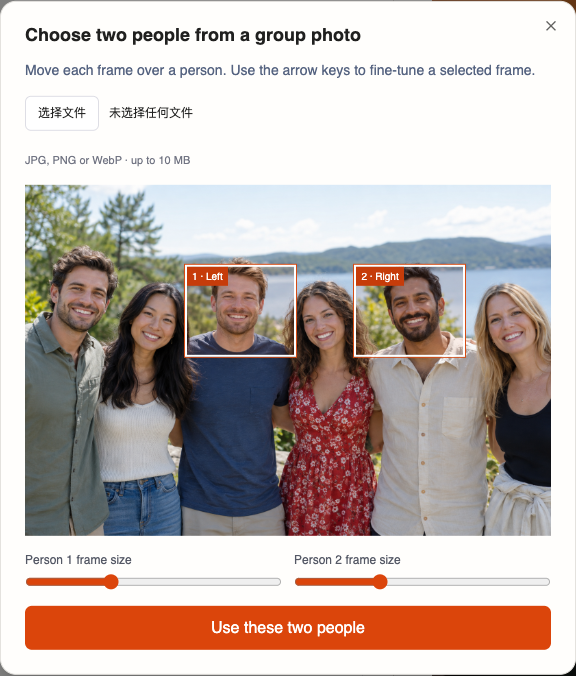
Interface example from the local app. The demonstration subjects are fictional; no video generation was submitted for this screenshot.
You can also upload two separate portraits. Use clear, front-facing photos when possible. A crop cannot recover details that are blurred, hidden, or missing from the original image.
2. Set positions and roles
Place the performers on the left and right, then choose Lead for the person who should carry the main part and Support for the other performer. If the composition feels better with the people on opposite sides, use Swap positions rather than starting the selection again.
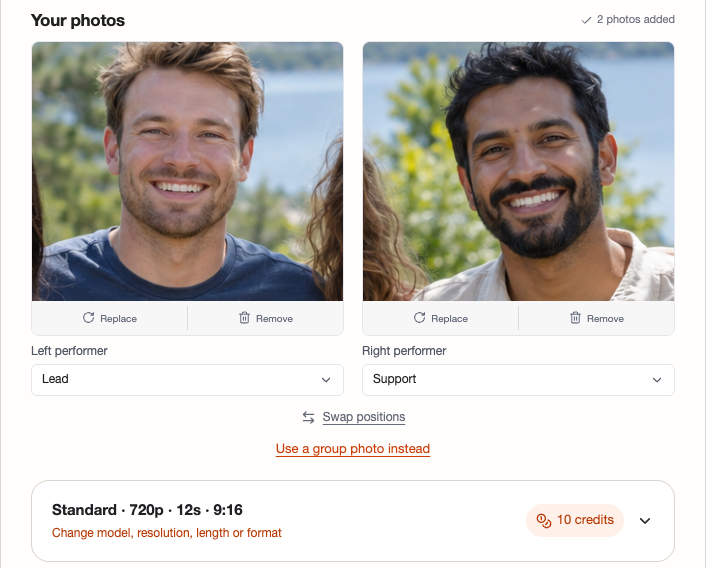
The form shows role assignment and a generation estimate. The displayed estimate is not a generation result.
Add one simple performance note if you need it, such as:
The lead faces the camera and gestures with one hand. The supporting performer nods beside them.
Treat the note as direction for the request, not as a promise of an exact final movement.
3. Choose the audio or motion reference
For the built-in Hotel Lobby experience, keep Hotel Lobby selected and choose the reference section you want to use. If you want a voice recording or song of your own, switch to Your own audio. If a particular dance or movement matters more than the soundtrack, use Your own video.
These are separate workflows. Uploading your own audio does not automatically preserve the built-in template's choreography. Adding different music to an already generated file changes the soundtrack, not the mouth movements that were generated for the original audio.
4. Review the quote before generating
Choose the output settings, then review the displayed model, duration, resolution, format, balance, and credit cost. The current standard example in the product uses 720p, 12 seconds, and 10 credits, but the quote can change when you change the settings or mode. Check the current pricing page before buying credits.
As checked on October 2, 2026, the one-time packs listed Single at $9.90 for 10 credits and Duo Pack at $29 for 50 credits. At Standard, 720p, and 12 seconds, those packs cover approximately one and five submissions respectively. Prices and generation allowances can change, so use the live quote as the final amount.
Select Generate only after the quote matches the attempt you intend to make. A new version uses another generation attempt, so review the first result before requesting a revision.
5. Watch and download the result
Follow the task in the studio or return to My Videos. Watch the whole clip with sound and check:
- whether both people remain recognizable during movement;
- whether the positions and Lead/Support arrangement match your brief;
- whether the selected audio section begins and ends where you expected; and
- whether the downloaded MP4 plays correctly before you share it.
Which workflow should you choose?
| You want to… | Start with… |
|---|---|
| Quickly reuse a prepared edit with one or two media slots | A CapCut template |
| Select two people from a group photo | Hotel Lobby AI |
| Keep independent left/right and Lead/Support choices | Hotel Lobby AI |
| Use your own audio or a motion reference | Hotel Lobby AI's custom mode |
| Reuse a fixed performance and edit it afterward | A CapCut template |
| See the generation cost before committing credits | Hotel Lobby AI |
There is no need to use an AI generator when a simple template already matches your idea. Hotel Lobby AI becomes useful when choosing the pair, arranging the performance, or using your own reference material is part of the creative brief.
Frequently asked questions
Is there one official Hotel Lobby CapCut template?
CapCut templates can be published and shared by creators, so availability is not guaranteed for one permanent Hotel Lobby link. Search the current template library and check the platform and region where you plan to use it.
Can Hotel Lobby AI use a group photo?
Yes. Upload the group photo, place two selection frames over the performers, and confirm the pair. You can also use two separate portraits.
Can I use my own song?
Yes. Use Your own audio to upload a song or voice recording and select the passage that should guide the performance. Use only material you have permission to use.
Is Hotel Lobby AI free?
New generations require paid credits. Review the current quote and pricing page before submitting. A displayed credit cost is an estimate for the selected settings; changing the model, duration, or resolution can change it.
Does assigning Lead guarantee specific lyrics or gestures?
No. Lead/Support and position settings guide the request. They do not guarantee exact lyric assignment, mouth movements, or gestures, so review the completed video before sharing it.